
Home » Help » Getting Started » First Access
November 9, 2025
When you enter Rembrr for the first time, you will see the assistant’s main screen. Here you will understand where each function is located and how to use the main buttons to start interacting with your virtual assistant.
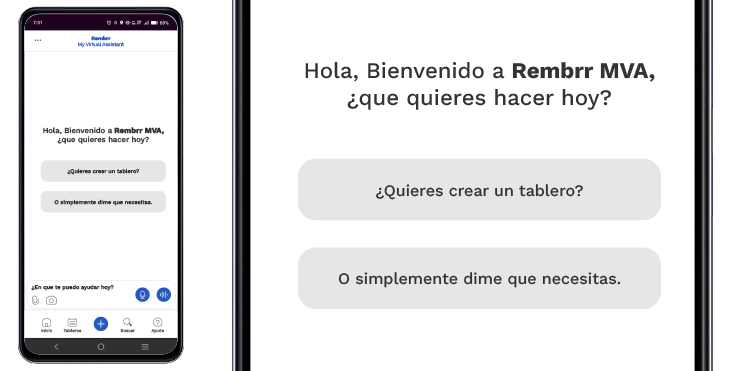
When you open the app for the first time, the assistant greets you to guide you:
“Hello, Welcome to Rembrr. What would you like to do today?”
“Do you want to create a task or event?”
“Or simply tell me what you need.”
These messages represent the assistant’s first automatic interaction and serve as guidance on what you can do.
The bottom part of the screen contains Rembrr’s main navigation pillars. Each icon is a quick access point to an important section.
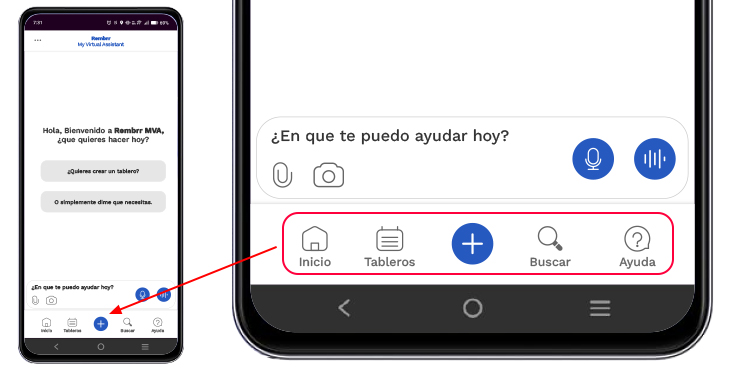
Direct access to the app’s home screen.
It allows you to quickly create new items.
Depending on the context, you can create:
Task board
Event board
New chat
Direct access to your task, event, and suggestion boards.
Allows you to search for boards, messages, or content within the app.
Here you will find your notifications, reminders, and important alerts.
When you tap it, you can:
Open quick guides
View frequently asked questions
Consult the Help Center within the app
Request support
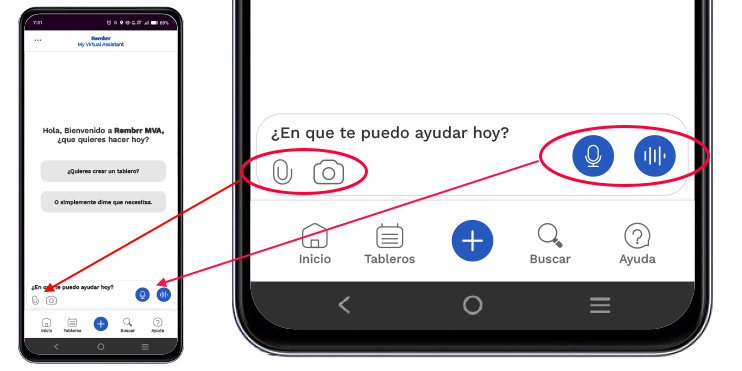
Just above the navigation bar you will find the main tools to interact with the assistant.
Used to upload images, documents, or files that you want to send to the assistant.
Activates the phone camera to take photos and attach them to the chat.
Allows you to select images already saved on your phone.
Activates voice input so you can ask the assistant questions by speaking instead of typing. The assistant will respond using text.
Activates the continuous voice recognition engine to dictate longer instructions or tasks and receive voice responses.
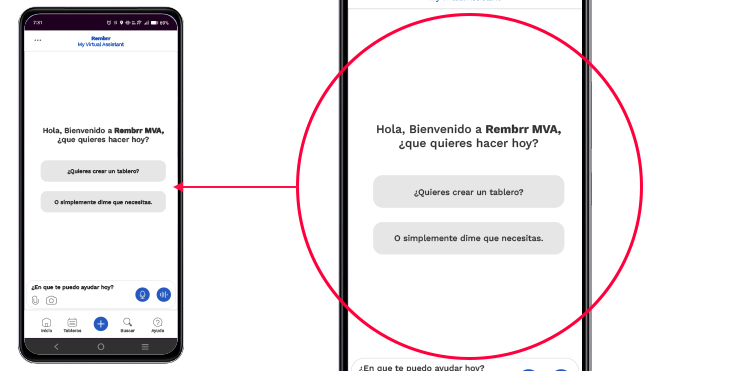
Here is where the following are displayed:
The welcome message
Your commands
The assistant’s responses
Guided tutorials
Automatic suggestions
The onboarding process
It is the center of human interaction with the AI.

In the upper left corner you will find a menu with additional actions such as:
Your account settings
Notifications
Language
Files
Chats
Settings options may change depending on the current version.
Usamos cookies para que REMBRR funcione correctamente y para mejorar tu experiencia. Algunas cookies son esenciales, mientras que otras nos ayudan a analizar el tráfico o personalizar contenido y marketing.
Puedes aceptar todas las cookies, rechazar las no esenciales o gestionar tus preferencias.
Fill out the following form and we will contact you shortly.
Fill out the following form and we will contact you shortly.
Fill out the following form and we will contact you shortly.
Fill out the following form and we will contact you shortly.
Fill out the following form and we will contact you shortly.
Fill out the following form and we will contact you shortly.
Fill out the following form and we will contact you shortly.
Fill out the following form and we will contact you shortly.