
Home » Help » Getting Started » Sign up for Rembrr
November 9, 2025
Signing up for Rembrr is fast, secure, and password-free. You only need your Google account (Gmail). Google verifies your identity and Rembrr automatically creates your profile so you can start using the app in seconds.
When you open the app, you will see an animation followed by the welcome screen.
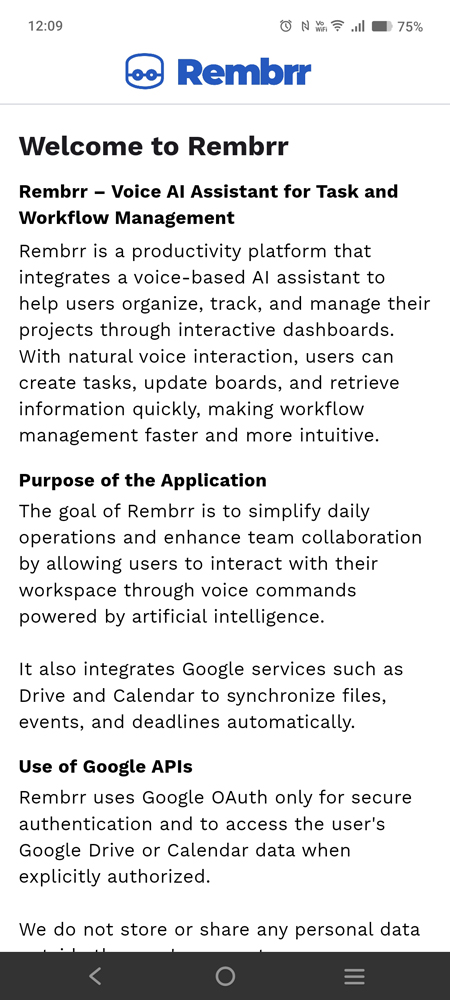
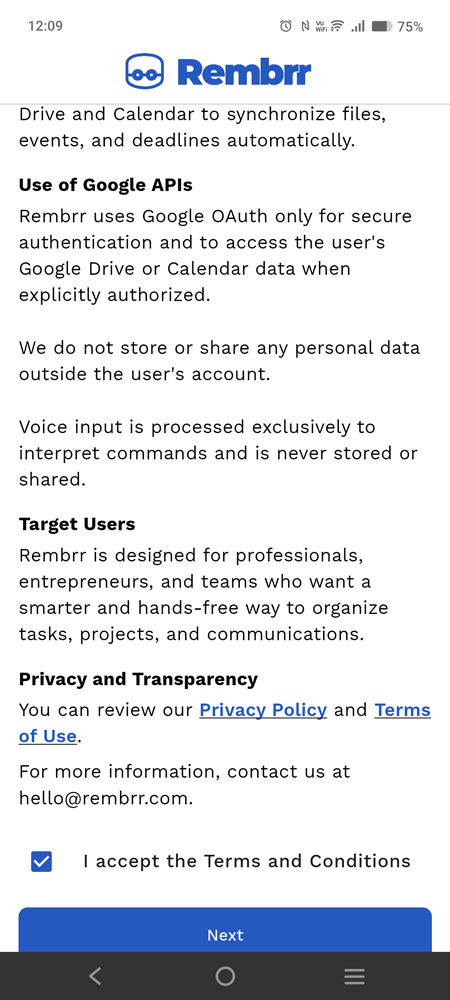
In these two screenshots we see the same full screen:
At the top (screenshot 1), Rembrr is introduced as a voice AI assistant for managing tasks and workflows.
As you scroll down (screenshot 2), it explains:
What the user needs to do:
Read the information on the screen by scrolling down.
Marcar la casilla “I accept the Terms and Conditions”.
Press the “Next” button to continue the registration process.
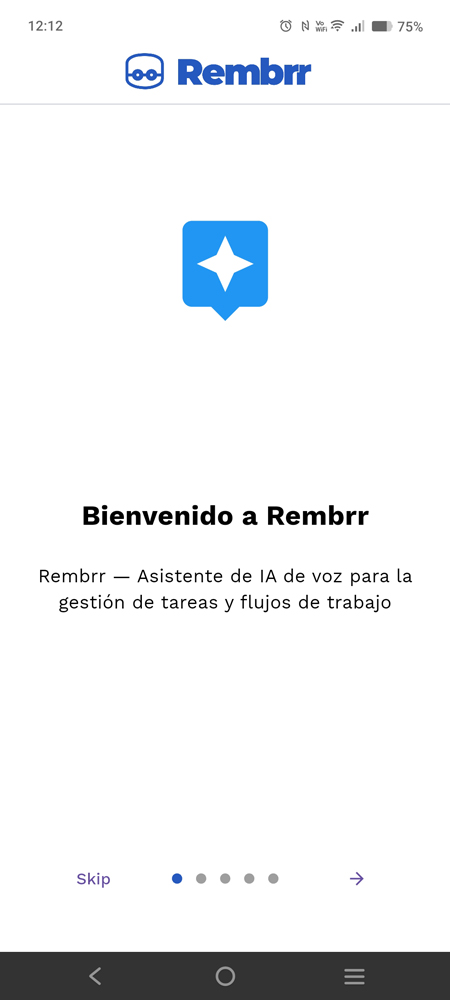
After the previous step, you will see a welcome screen with the text:
“Welcome to Rembrr – Voice AI assistant for task and workflow management”
It is an introduction screen within the app.
What the user needs to do:
Press the forward button (arrow) to continue with the registration flow.
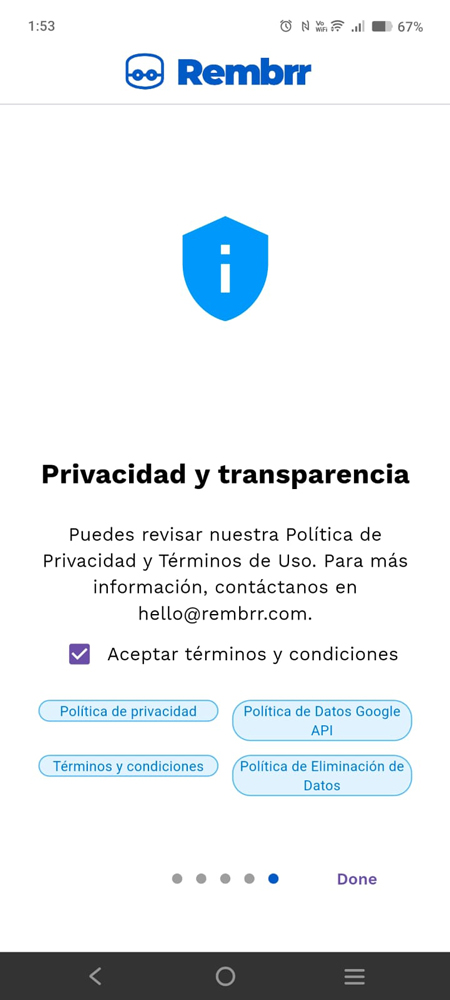
On this screen, the privacy topic is reinforced:
Title: “Privacy and transparency”
Text explaining that you can review:
At the bottom appears the checkbox “Accept terms and conditions” and chip-style buttons to open each policy.
What the user needs to do:
Review the documents, if desired, by tapping each button (Privacy Policy, etc.).
Check the box “Accept terms and conditions”.
Press the forward button (“Done” / continue) to proceed.
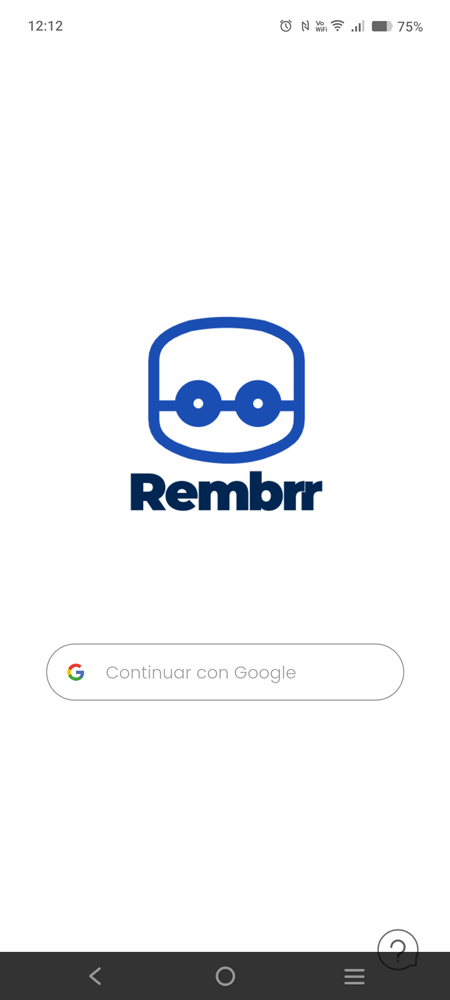
Here the Rembrr logo is shown and, at the bottom, the button:
5. “Continue with Google”
This is the official authentication method to create your Rembrr account.
What the user needs to do:
Press “Continue with Google” to start the Google sign-in process.
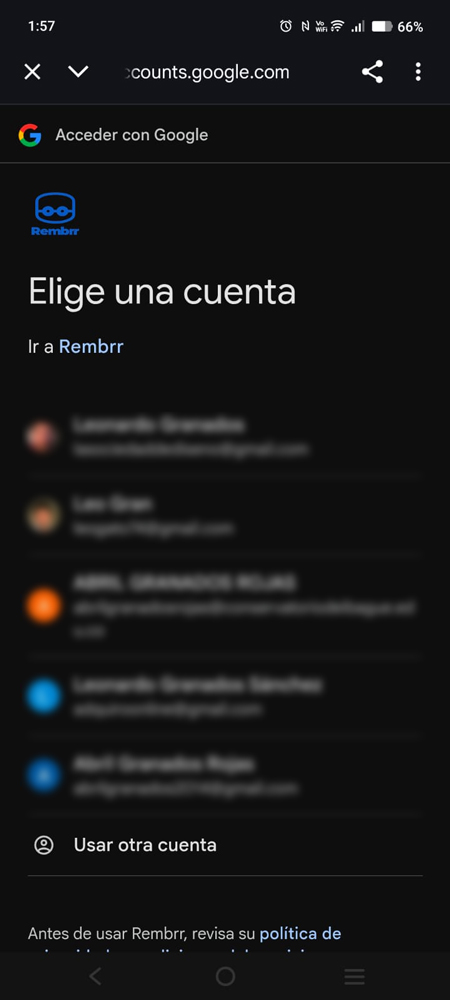
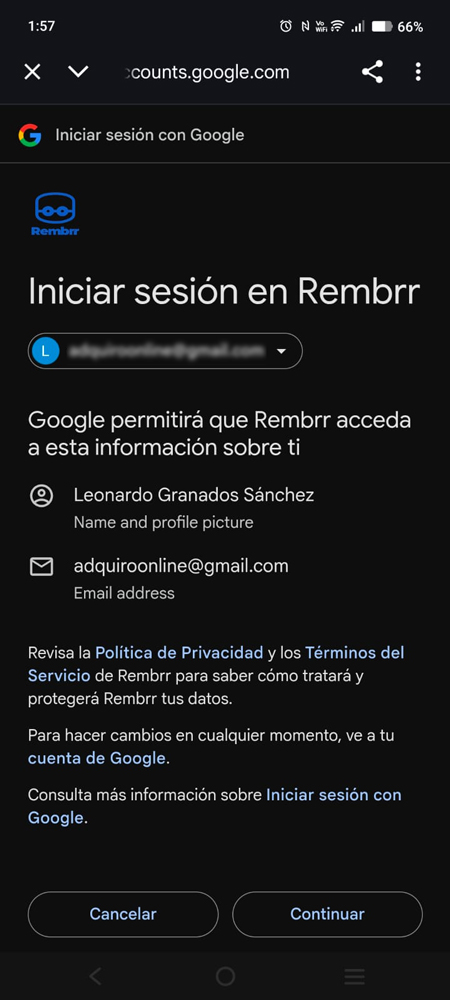
First, Google shows you the list of available accounts to “Go to Rembrr”. After selecting one, you will see a confirmation screen indicating that:
Rembrr will access your name and profile picture.
It will use the email address associated with that account.
What you need to do:
Choose the Google account you want to link (or “Use another account”).
Check that the details (name and email) are correct.
Tap “Continue” to proceed.
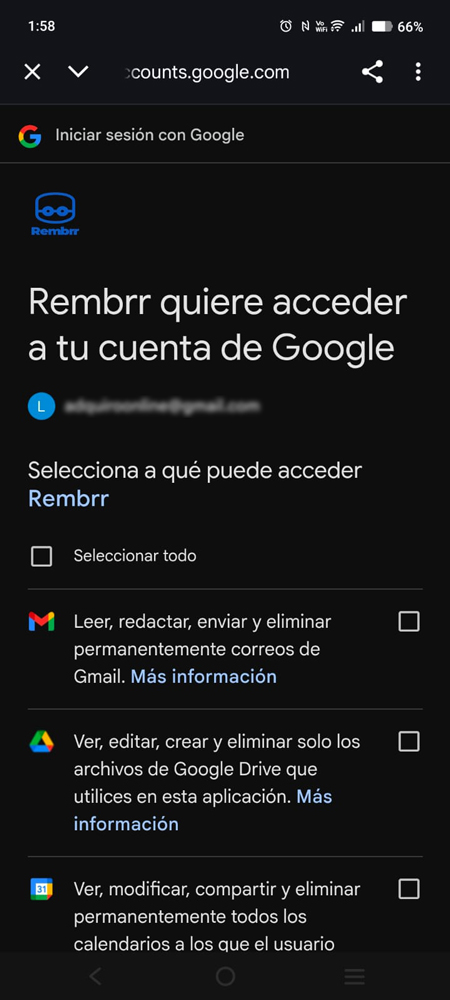
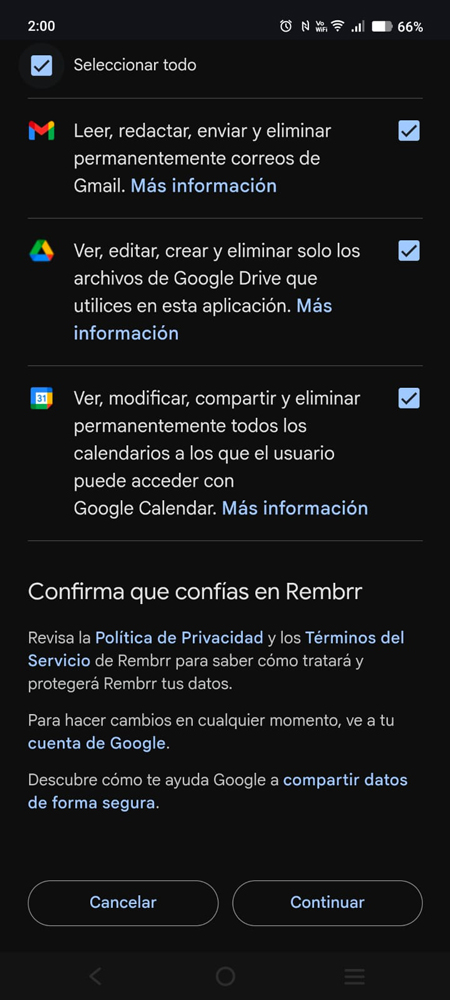
Google shows a list of permissions that Rembrr can use, for example:
Access to Gmail
Access to Google Drive
Access to Google Calendar
In the first view, the checkboxes are unchecked; once you activate them, you will see the same list but with all the boxes selected.
What you need to do:
Read each permission and its description.
Check the boxes for the permissions you want to grant to Rembrr.
When you are satisfied, press “Continue” to complete the authorization.
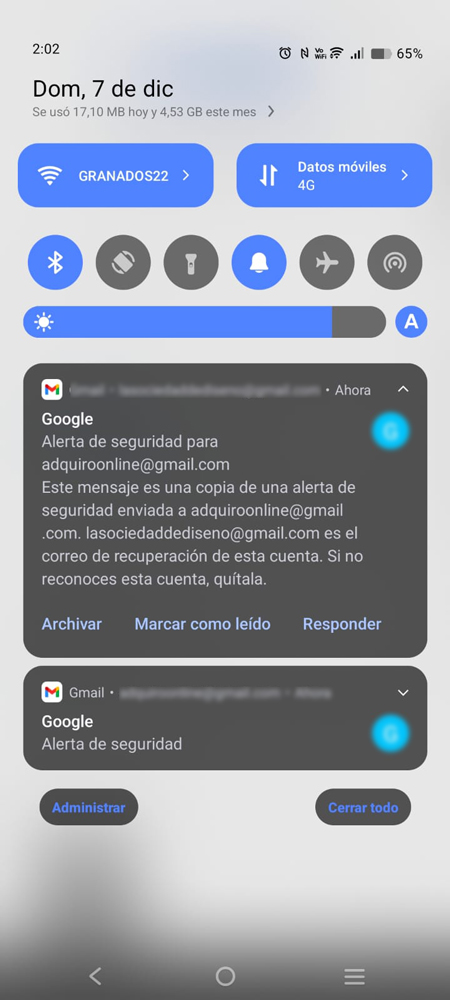
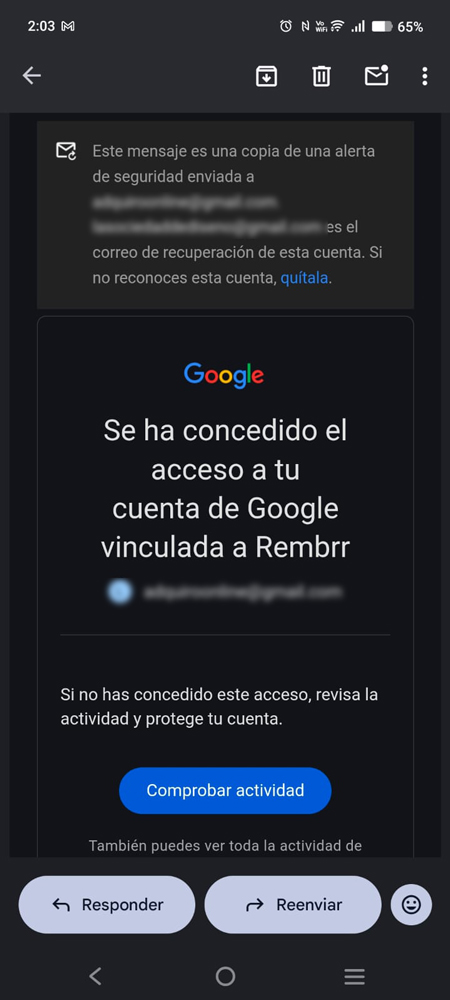
After granting the permissions:
Google envía una alerta de seguridad a tu dispositivo indicando que se ha permitido el acceso de Rembrr a tu cuenta.
You will also receive an email confirming that your Google account has been linked to Rembrr.
What you need to do:
Verify that you recognize the activity.
If you were the one who completed the process, you don’t need to do anything else.
Keep the email as a reference; from there you can review activity or revoke access in the future if you wish.
With these steps:
Tu cuenta en Rembrr queda creada.
Your Google account is securely linked.
Ya puedes continuar con el tutorial “Primer Acceso” para aprender a moverte dentro de la app y empezar a trabajar con tu asistente de IA por voz.
Usamos cookies para que REMBRR funcione correctamente y para mejorar tu experiencia. Algunas cookies son esenciales, mientras que otras nos ayudan a analizar el tráfico o personalizar contenido y marketing.
Puedes aceptar todas las cookies, rechazar las no esenciales o gestionar tus preferencias.
Fill out the following form and we will contact you shortly.
Fill out the following form and we will contact you shortly.
Fill out the following form and we will contact you shortly.
Fill out the following form and we will contact you shortly.
Fill out the following form and we will contact you shortly.
Fill out the following form and we will contact you shortly.
Fill out the following form and we will contact you shortly.
Fill out the following form and we will contact you shortly.